
(An engineer’s walkthrough in a room full of curious minds)
Alright, imagine this.
You walk into a conference room. Screens are up, coffee is half-drunk, and someone throws the question:
“How does the Windows vs Linux boot process actually work… and why do they feel so different?”
Not the marketing answer. Not the textbook diagram.
The real flow. The stuff that actually matters when you’re debugging at 3 AM or building something that needs to be bulletproof.
Let’s break it down like engineers.
The Booting Game: Not Just Power On
Before we compare anything deeper, it’s important to understand that the Windows vs Linux boot process is not just about starting an operating system, but about how control flows from hardware to software.
Booting is not “starting the OS.”
Booting is a chain of trust and execution.
It’s a relay race:
- Firmware hands control to bootloader
- Bootloader hands control to kernel
- Kernel builds the world
- Userspace makes it usable
Every OS plays this game differently.
And that difference? That’s where things get interesting.
Phase 1: Firmware — The Starting Line
When you hit the power button, your system doesn’t care about Windows or Linux.
It starts with firmware:
- BIOS (legacy)
- UEFI (modern systems)
This layer:
- Initializes hardware
- Runs POST (Power-On Self Test)
- Decides what to boot
At this stage, both Windows and Linux are treated equally. The firmware just looks for a valid boot entry.
But here’s the first divergence.
Windows Approach
Windows typically uses:
- Windows Boot Manager (bootmgfw.efi)
UEFI directly points to it. No drama, no flexibility. It’s controlled, predictable.
Linux Approach
Linux systems usually rely on:
- GRUB (Grand Unified Bootloader)
- Or sometimes systemd-boot, LILO (rare now)
GRUB is like that engineer who refuses to do things the “default way.”
It’s configurable, scriptable, and can boot almost anything.
Key Difference
- Windows: Controlled pipeline
- Linux: Flexible pipeline
That flexibility becomes power later.
Phase 2: Bootloader — The Decision Maker
This is where things stop being generic.
The bootloader:
- Loads the kernel
- Passes parameters
- Sets the stage for the OS
This is also where the Windows vs Linux boot process starts to diverge significantly, especially in how each system handles control, flexibility, and recovery options.
Windows Bootloader Flow
Windows Boot Manager:
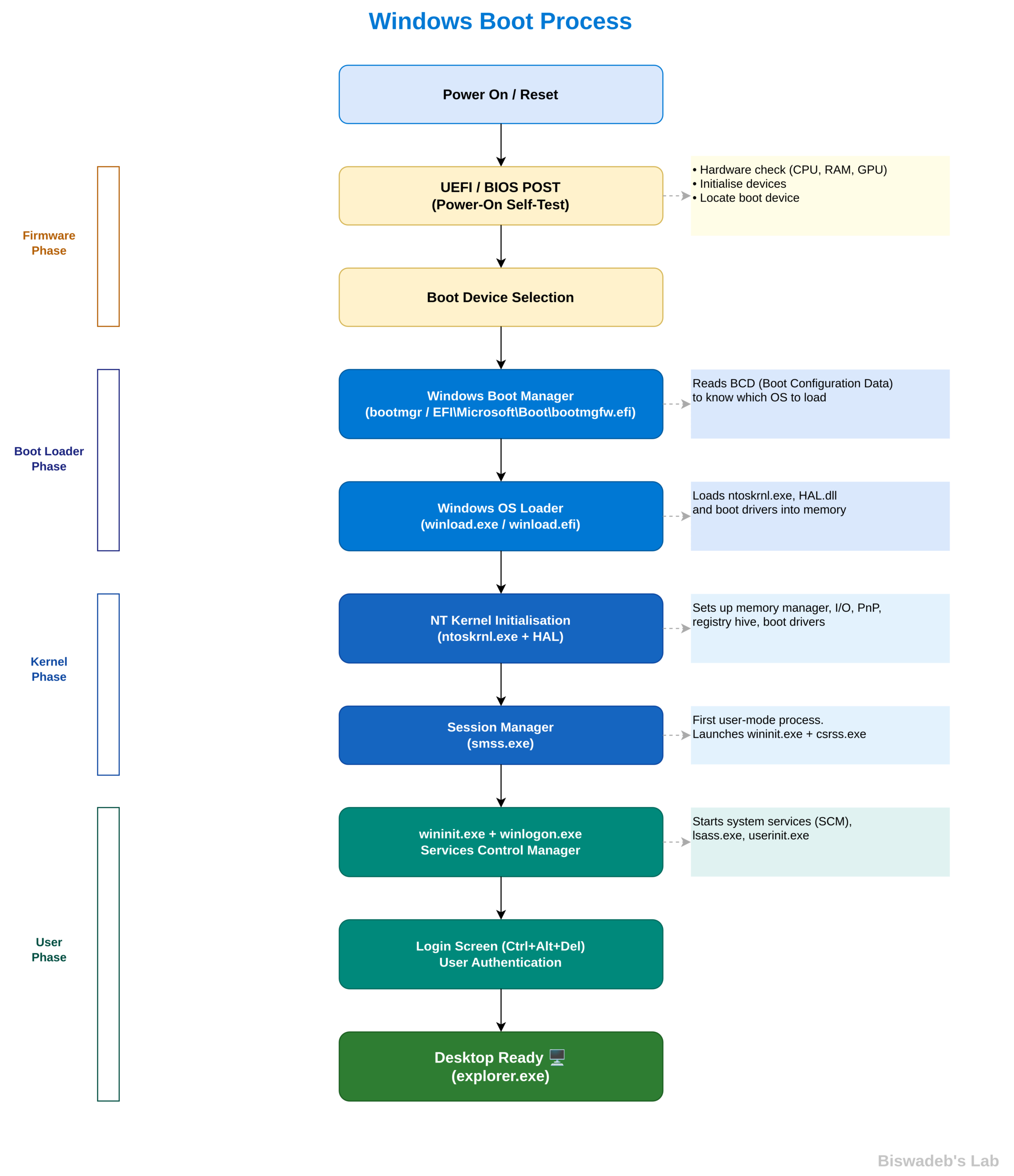
- Reads BCD (Boot Configuration Data)
- Chooses the OS
- Loads winload.efi
- Hands off to the Windows kernel
It’s structured, minimal, and tightly integrated.
No user intervention unless something breaks.
Linux Bootloader Flow
GRUB does more than just load the OS:
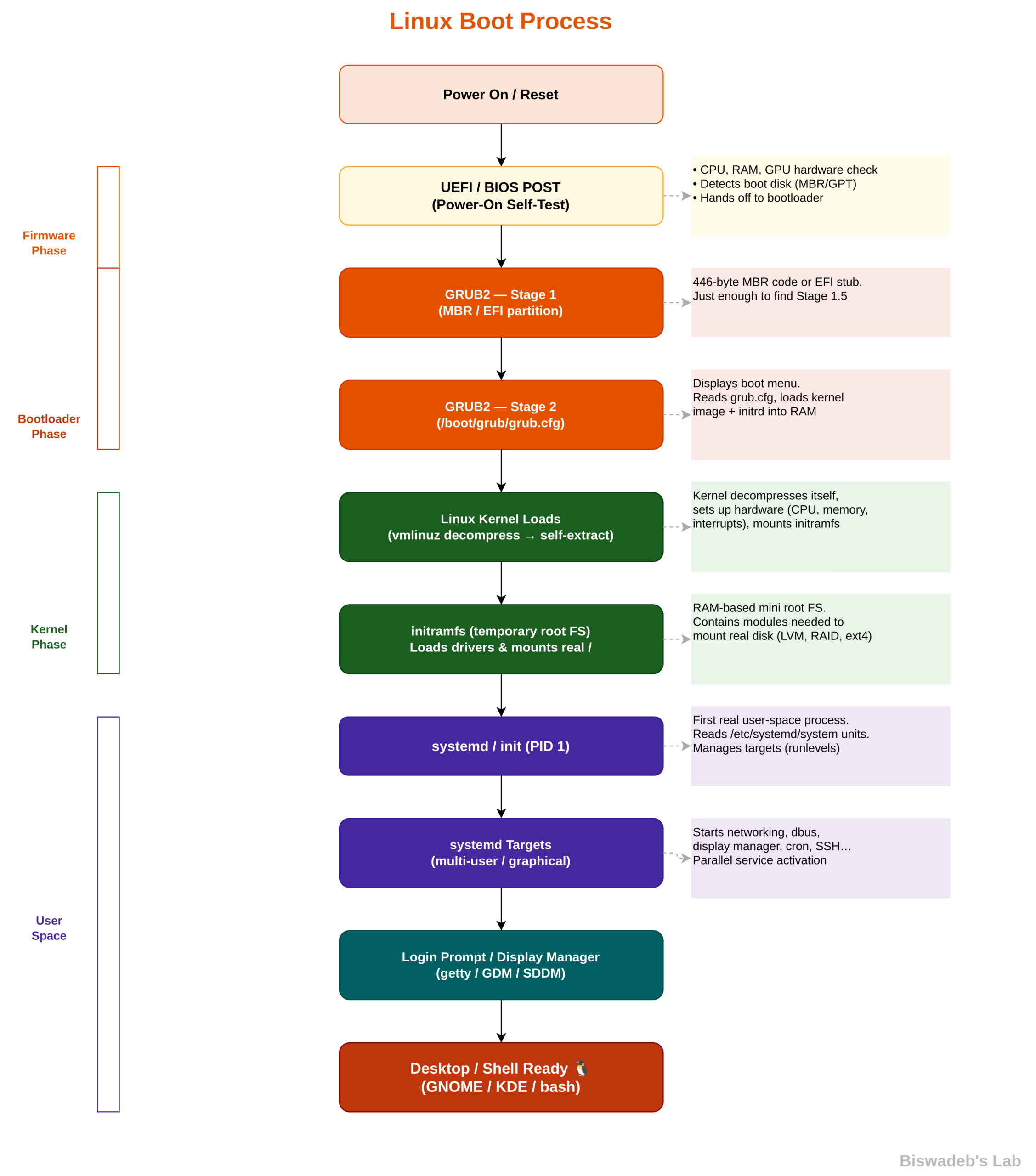
- Displays a boot menu
- Lets you edit kernel parameters on the fly
- Supports multiple kernels, OSes, rescue modes
You can literally:
- Drop into a shell
- Modify boot flags
- Debug before the OS even starts
That’s serious power.
Engineering Insight
If Windows is a sealed pipeline,
Linux is a debuggable pipeline.
That’s why:
- Windows is easier for end users
- Linux is preferred by engineers
Phase 3: Kernel — The Core Awakens
Now things get serious.
The kernel is loaded into memory and starts executing.
At this stage, the Windows vs Linux boot process reveals its core design philosophy, showing the difference between controlled execution and modular initialization.
Windows Kernel Startup
Windows loads:
- ntoskrnl.exe (the NT kernel)
Then it:
- Initializes memory manager
- Loads HAL (Hardware Abstraction Layer)
- Starts essential drivers
- Launches Session Manager (smss.exe)
Everything is tightly controlled.
Drivers must follow strict rules.
Execution order is carefully designed.
Linux Kernel Startup
Linux kernel:
- Is monolithic (but modular)
- Initializes hardware directly
- Mounts the root filesystem
- Starts init system
And here’s the key:
Linux doesn’t assume much.
It builds everything step by step, often based on:
- Kernel parameters
- Initramfs configuration
Hidden Power Move
Linux uses initramfs (initial RAM filesystem).
This is like a temporary mini-OS that:
- Loads drivers
- Prepares the real root filesystem
Think of it as:
A staging environment before the actual OS comes online
Windows doesn’t expose this level of modular staging.
Phase 4: Init System — Where Personality Shows
Now we enter userspace.
This is where the OS becomes usable.
Windows Init
Windows uses a structured startup chain:
- smss.exe → csrss.exe → wininit.exe → services.exe → lsass.exe
Eventually leading to:
- Explorer.exe (GUI)
It’s fixed. Predictable.
You don’t swap this out.
Linux Init
Linux uses:
- systemd (modern standard)
- Older systems used SysVinit or Upstart
systemd is powerful.
It:
- Starts services in parallel
- Handles dependencies
- Manages logging, networking, mounts
Real Talk
systemd changed Linux booting from:
“Start things one by one”
To:
“Start everything intelligently at once”
That’s why modern Linux boots fast.
Phase 5: Services and User Space
Now both systems:
- Start services
- Initialize networking
- Launch user environment
Windows
- Services controlled by Service Control Manager
- Registry plays a big role
- GUI is central to user experience
Linux
- Services are units (in systemd)
- Config is mostly file-based
- GUI is optional
Yes, optional.
Linux can boot fully functional with:
- No GUI
- Just a terminal
Try that with Windows.
Boot Speed: Who Wins?
Now the question everyone asks:
Which boots faster?
The honest answer:
It depends on configuration, not OS.
But generally:
- Linux boots faster on minimal setups
- Windows is optimized for consistency
Why?
Linux:
- Parallel service startup
- Minimal overhead (if configured that way)
Windows:
- More background processes
- More abstraction layers
Security in Booting
This is where things get serious.
Windows Security
- Secure Boot enforced strongly
- Signed drivers required
- Kernel protected by design
Harder to tamper with.
Linux Security
- Also supports Secure Boot
- But allows customization
You can:
- Build your own kernel
- Disable protections if needed
That flexibility is powerful and risky.
Debugging: The Real Battlefield
Now imagine something breaks.
Windows Debugging
- Limited pre-boot interaction
- Requires recovery tools
- Logs are structured but less flexible
Linux Debugging
You can:
- Drop into GRUB
- Modify boot parameters
- Boot into single-user mode
- Analyze logs early
Linux gives you control before failure becomes fatal
Philosophy Difference (The Real Answer)
Let’s zoom out.
This isn’t just technical.
Windows Philosophy
- Stability over flexibility
- User-first design
- Controlled ecosystem
Linux Philosophy
- Control over convenience
- Transparency
- Modular design
So… Who Wins the Booting Game?
If this were a competition:
- Windows wins in predictability
- Linux wins in control
But the real answer:
They’re playing different games.
Windows:
“Make it work for everyone.”
Linux:
“Let you decide how it works.”
Final Thoughts (Back to the Conference Room)
If you’re sitting in that room as an engineer, here’s what matters:
- If you want plug-and-play reliability, Windows delivers
- If you want deep control and customization, Linux dominates
In the end, the Windows vs Linux boot process is less about which one is better and more about what kind of control and reliability you need.
Understanding booting isn’t about memorizing steps.
It’s about understanding:
- Where control lives
- Where failures happen
- Where you can intervene
Because once you understand the boot chain…
You don’t just use systems anymore.
You own them.
References
- Microsoft Windows — Windows Internals Documentation
https://learn.microsoft.com/en-us/windows-hardware/drivers/kernel/ - Linux kernel — Kernel Documentation
https://www.kernel.org/doc/html/latest/ - GNU GRUB — GRUB Manual
https://www.gnu.org/software/grub/manual/grub/ - systemd — systemd Official Documentation
https://www.freedesktop.org/software/systemd/man/ - Unified Extensible Firmware Interface — UEFI Specification
https://uefi.org/specifications - BIOS — BIOS Overview (Intel Documentation)
https://www.intel.com/content/www/us/en/support/articles/000005500/processors.html - Windows Boot Manager — Boot Process Overview
https://learn.microsoft.com/en-us/windows/client-management/windows-boot-process - initramfs — Linux Boot Documentation
https://www.kernel.org/doc/Documentation/filesystems/ramfs-rootfs-initramfs.txt






Leave a Reply